Getting Started
About
This manual takes you through scoring for a single heat event.
At this stage we provide only limited documentation for MYA HMS. We will add HMS documentation as time goes on.
How to Use this Manual
We suggest you:
- read through Scoring an Event. If you have the app open, and want to follow with a sample event, even better! This section will refer you to the menus and screens you need.
- read the Making Changes section. Again, you can use your sample event to try things out.
- use the Main Menu section as a reference.
Scoring an Event
My Event: Create an event
- Use the Main Menu to navigate to the Events Screen.
-
Select NEW from the Options Menu. (Opens the Event Screen)
Note
The app comes pre-loaded with an event called "New Event [Rename]". Using EDIT from the Options Menu, will work for your first event. You can then rename the event.
-
Name the event.
- Optional: Change any of the Advanced settings (see Event Screen)
- Select Save from the Options Menu.
Your event will now be the active event on the Events Screen.
ENTER: Add event entries
- Use the Main Menu to navigate to the Entries Screen.
- Use the Options Menu to add, change or remove entries for an event.
- Name and sail number are mandatory.
- Other items are optional.
RACE: Score Races
- Use the Main Menu to navigate to the Race Screen.
-
In the Scheduled Entries section, click on sail numbers to finish a boat.
For other options, long press on the sail number (in the Scheduled Entries).
Note
A long press on a finished boat (in the Results section) will bring up a focussed range of options.
-
Use the + button to create the next race or heat
Note
This note applies to HMS only.
This also sets up heats beyond the next heat
Warning
It's generally best to have a result for ALL boats in a race or heat, prior to hitting the + button.
Some people have completely missed scoring a race, but have hit the + button. We don't (yet) have the ability to delete a race (unless it's the last race), so it leaves a hole in the scoring that is difficult to recover from.
Warning
This note applies to HMS only.
Hitting the + button, before all boats have a result, is likely to mean that Afleet is unable to schedule heats correctly.
SCORE: View, print, save as PDF or share results
Use the Main Menu to navigate to the Score Screen.
Share
- Select Share from the Options Menu.
- Select from the available options. These options depend on the way your
device is set up. Commonly available options:
- Gmail
- Messaging
- Drive
- Enter details as requested by the app you select.
Print or save as PDF
- Select Print from the Options Menu.
- Select a printer (or Save as PDF).
- Select from the options provided.
- Press the Print (or PDF) button.
Making Changes
Change event details
- Use the Main Menu to navigate to the Events Screen.
- Select the Event you want to change.
- Select Edit from the Options Menu.
- Change any settings on the Event Screen.
- Select Save from the Options Menu.
Correct a skipper's name
Sometimes we misspell names, and want to correct them.
- Use the Main Menu to navigate to the Contacts Screen. It lists the names of skippers that we have entered in events, and populates automatically when event entries are created.
- Select the contact you want to edit.
- Select Edit (from the Options Menu).
- Edit the name.
- Select Save (from the Options Menu).
Note
- Corrected spelling propagates across all events on the device.
- If you change an existing entry name, on the Entry Screen, it will only affect that entry. A contact with the initial spelling may remain, leaving you with two contacts representing the same skipper. If you want to remove one see How do I remove a contact?
Navigate to a different race or heat
-
Use the Main Menu to navigate to the Race Screen.
-
Use < or > to navigate through the races (single heat) or heats (HMS).
Warning
The + button is ONLY to be used for setting up a new race or heat. If you use it before scoring the current race or heat, you may
- skip a race that you needed to score, and not know it until later OR
- make it impossible for Afleet to set up the next heats (HMS only). You should use the Fleet Screen to look ahead.
Change finishing positions
- Use the Main Menu to navigate to the Race Screen.
- Navigate to the affected Race or Heat.
- Use the slider (right hand side of each finished boat in the Results section of the screen) to drag the boat to the correct position.
Affects HMS Promotion/Relegation
Changing the position of a boat AFTER new heat(s) have been set up can affect which boats should sail in future heats. Check the fleetboard.
Main Menu
Note
Some menu items will be greyed out until you complete earlier steps.
The Main Menu is used to navigate through Afleet. Selected by the "hamburger" icon visible at the top left of the main screens, it lists the major screens available.
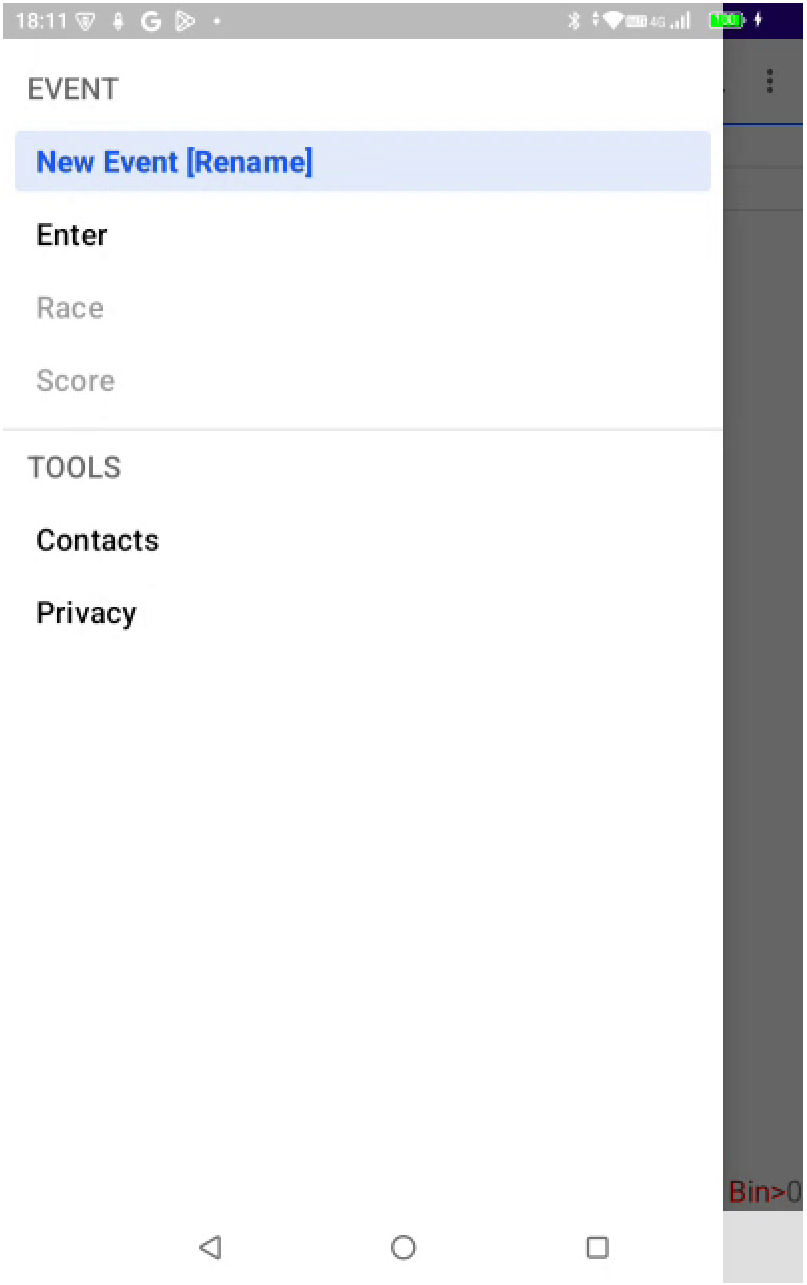
The Main Menu is divided into two sections:
-
EVENT: focussed on a single event, this section of the menu is designed to walk you through the steps required to:
- create an event
- add event entries
- view and set up heats (HMS only)
- score each race
- view and share scores
-
TOOLS: utilities and functionality that apply to multiple events
EVENT
| Menu item | Screen | Purpose |
|---|---|---|
|
Events Screen | List, select, add, change, delete or export events. |
| Enter | Entries Screen | List, select, add, change or delete event entries. |
| Fleet | Fleet Screen | (HMS only). View and manage the Fleetboard; access Fleet Settings. |
| Race | Race Screen | Score a heat; manage heat entries. |
| Score | Score Screen | Display, print or share results. |
TOOLS
| Menu item | Screen | Purpose |
|---|---|---|
| Contacts | Contacts Screen | List and edit skipper names; remove skippers from the dropdown on the Entry Screen. |
| Privacy | Privacy Screen | Display the Afleet privacy policy. |